Before you start
IAMMETER Simulator is an online simulator for testing energy meter features before buying the hardware. Try local APIs, Modbus/TCP, HTTP/HTTPS uploads, MQTT/MQTTS and integrations with third-party platforms.
For Home Assistant users, it provides a way to set up a connection, check entity readings, and experiment with dashboards and automations before installing a physical meter.
This guide uses the WEM2067 simulator for the IAMMETER HTTP example and the simulator’s shared three-phase server for Modbus/TCP. The screenshots show example configurations and readings.
1. Open the WEM2067 Simulator
The WEM2067 is a dual-channel energy meter for home users. It supports split-phase grid monitoring and single-phase home solar monitoring.
In a single-phase home solar system, the two channels can measure electricity imported from and exported to the grid and solar generation at the inverter output. For split-phase grid monitoring, they measure the two legs of the grid supply.
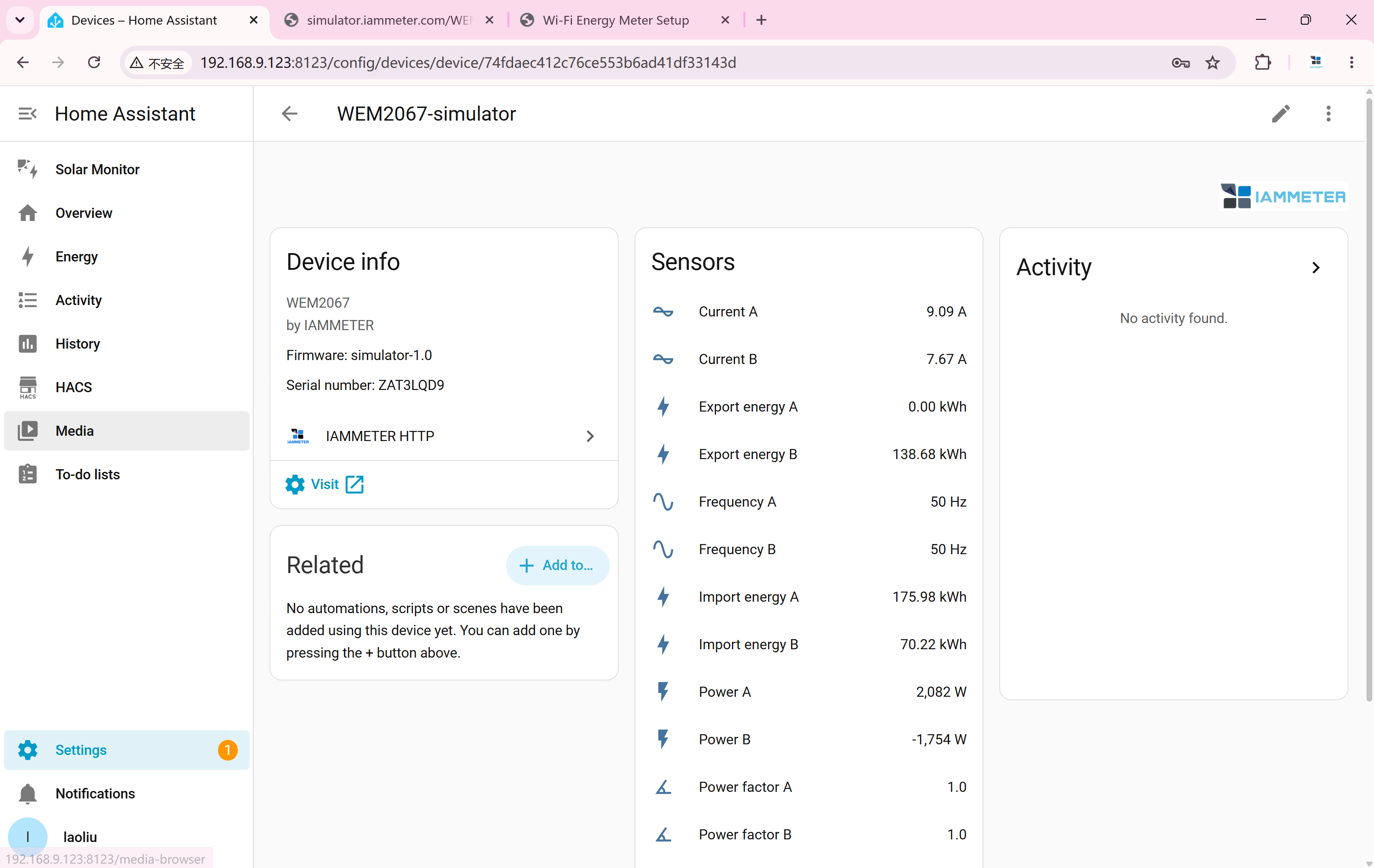
In the default inverter-and-grid simulation, A is inverter generation and B is grid import/export. The HTTP WEM2067 endpoint exposes these two channels.
2. Test the IAMMETER HTTP Integration
Install IAMMETER HTTP through HACS, then restart Home Assistant. If it is already installed, update to a version with full HTTP/HTTPS URL support.
Home Assistant must be able to resolve simulator.iammeter.com and reach HTTPS port 443 or HTTP port 80. This guide uses the HACS custom integration; it does not assume the built-in HA Core integration supports a custom URL path.
2.1. Add the Simulated Meter
In HA, go to Settings → Devices & services → Add integration, then select IAMMETER HTTP.
Paste the complete endpoint below into the address field that supports a full URL. Newer versions also accept the meter’s base URL and append /monitorjson automatically. When a full URL is used, the separate port field is ignored; leave username and password blank for public simulator readings.
After setup, check voltage, current, power and cumulative energy entities for channels A and B. Watch for updates to confirm HA is receiving data. WEM2067 reports SN ZAT3LQD9 and has no C-channel entities.
WEM2067 HTTP data URL
https://simulator.iammeter.com/WEM2067/monitorjson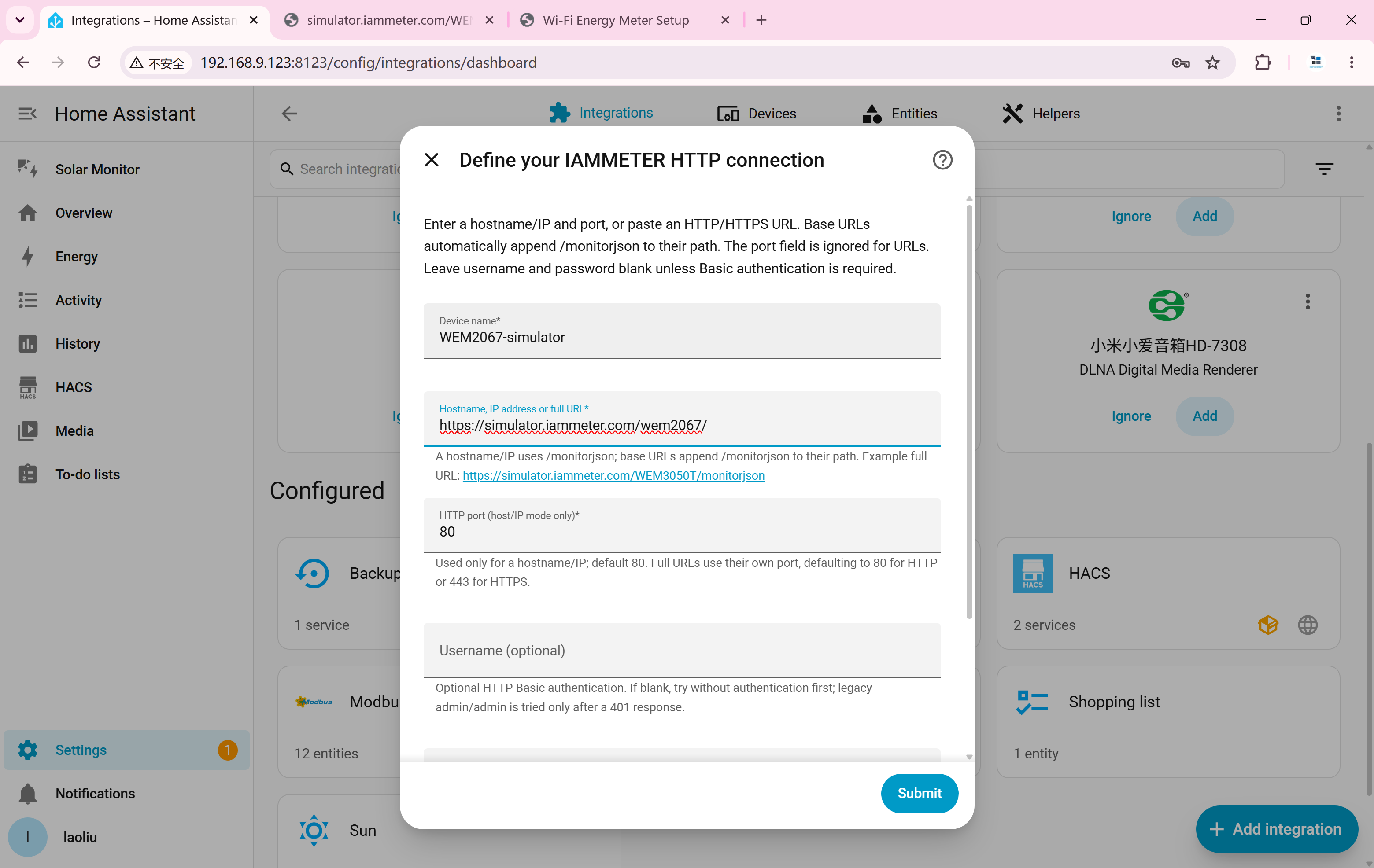
2.2. Test Dashboards and Automations
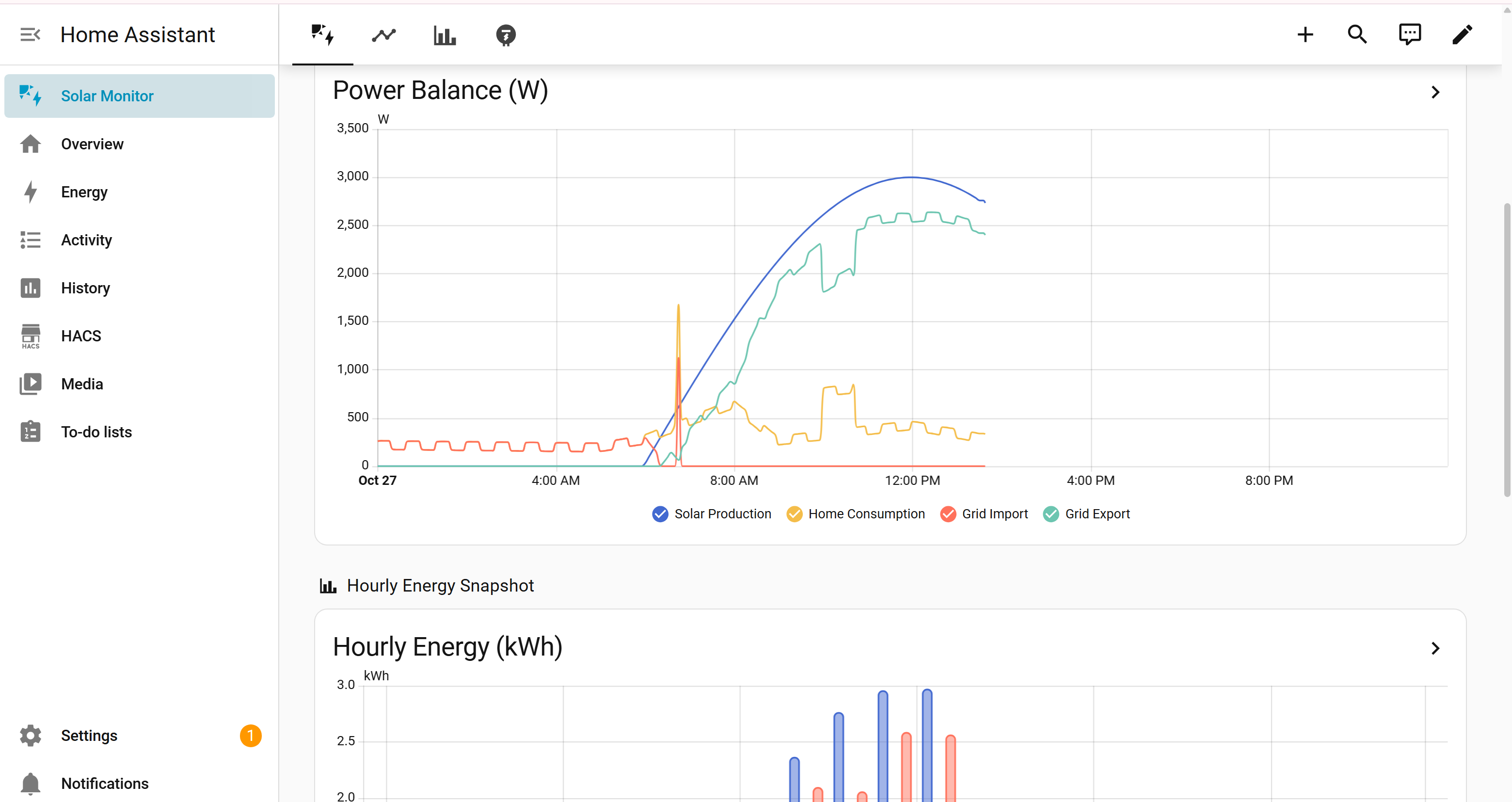
Use the entities to build a dashboard showing power and energy. The screenshot is an example dashboard; your layout depends on your own configuration.
The home solar curves let you observe readings under different generation and consumption conditions and check whether automations trigger as expected.
- Send a test notification when power is being exported to the grid.
- Trigger an alert when consumption exceeds a set power level.
- Test load control logic based on solar generation and grid power.
2.3. Switch to a Physical Meter
For a physical meter, use its local IP address and HTTP port 80, or its full local /monitorjson URL, as shown below. Then check the readings and updates.
Reconfigure validates device identity. If the physical meter has a different SN and the integration reports a different device, add it as a new entry instead. Review dashboard and automation entity references; replacing an address does not guarantee that existing entities or energy history migrate.
Physical meter example
http://192.168.1.100/monitorjson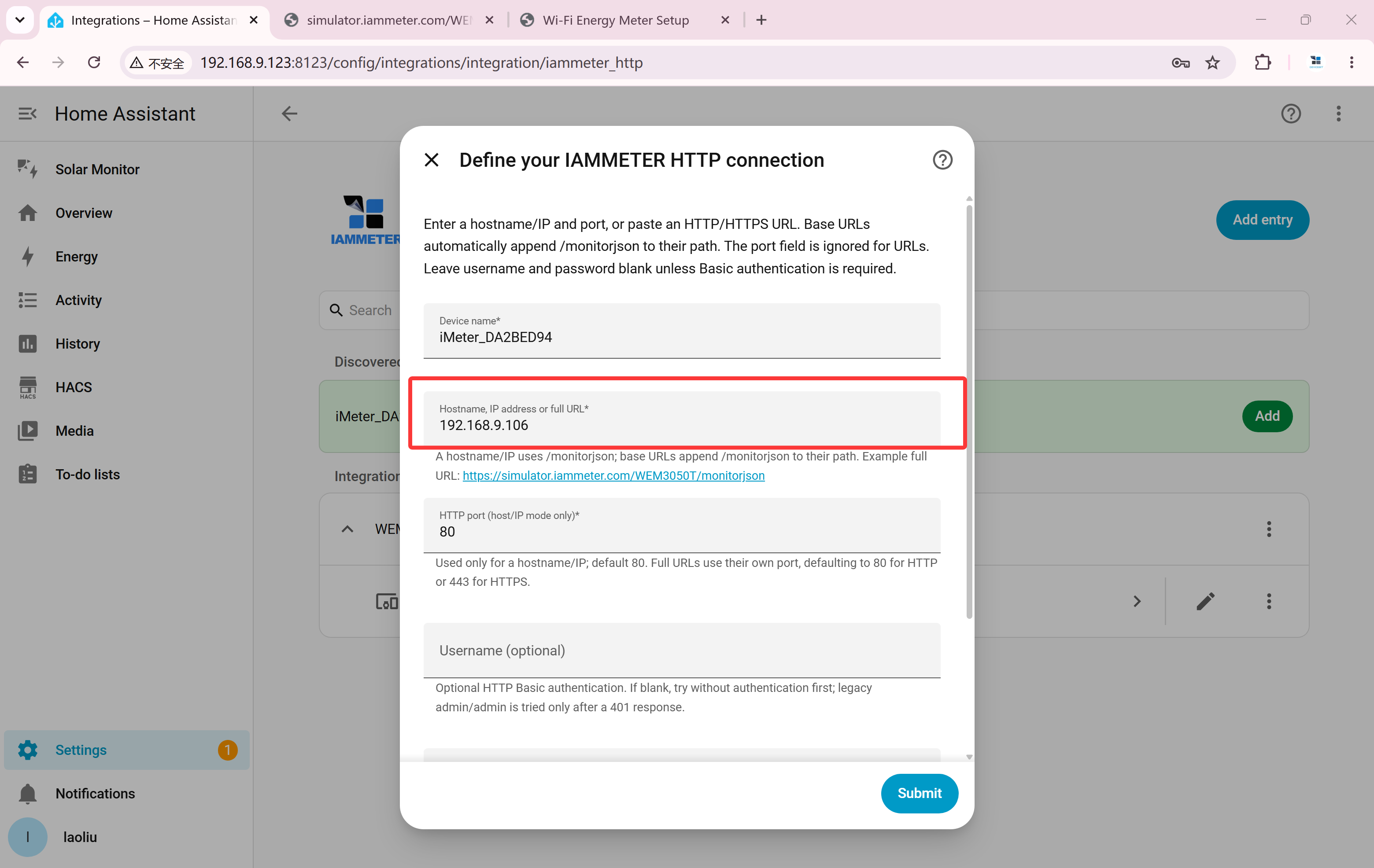
3. Test the Modbus/TCP Integration
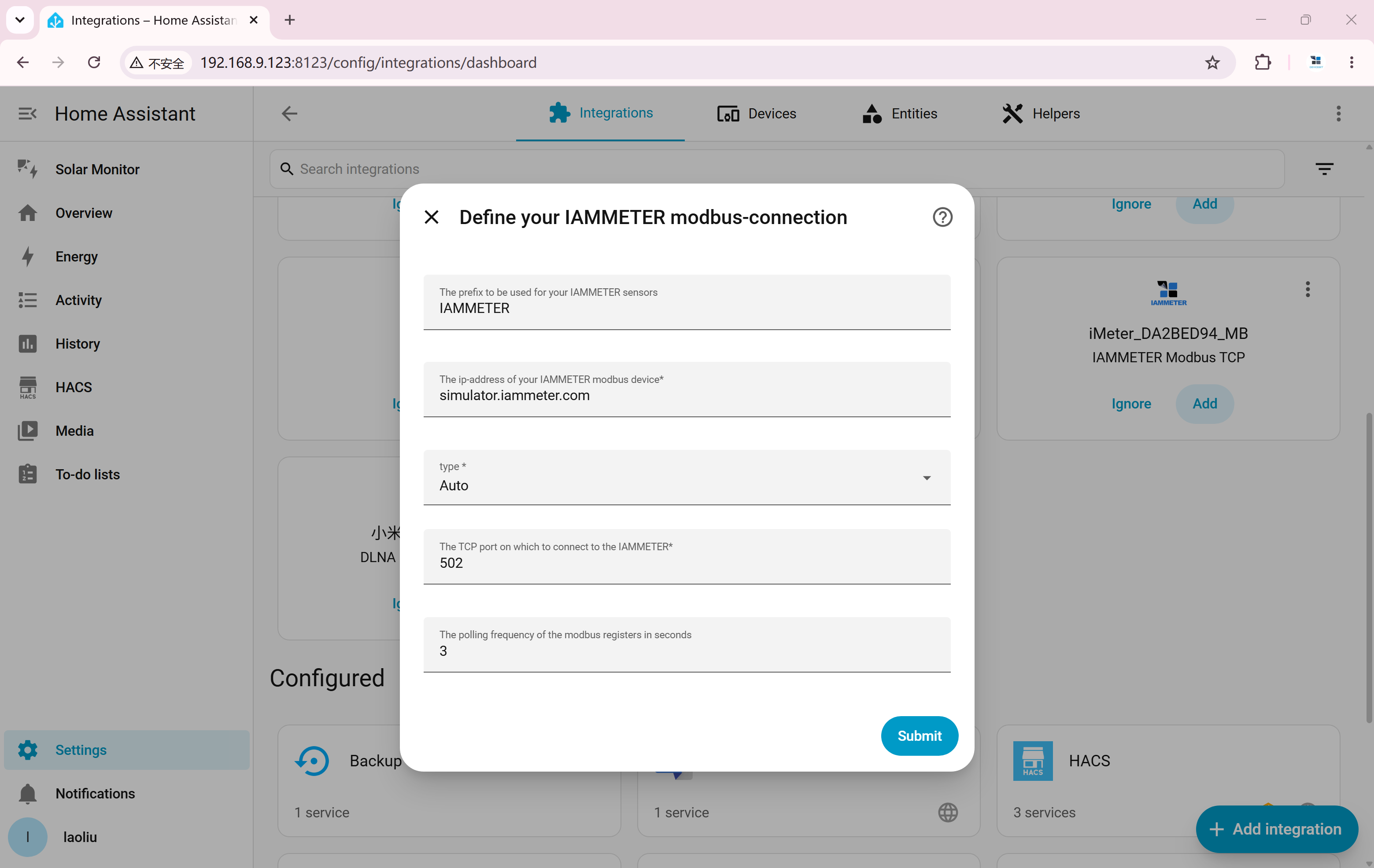
Install IAMMETER Modbus TCP through HACS and follow the repository’s installation instructions. Enter a hostname, not an HTTP URL.
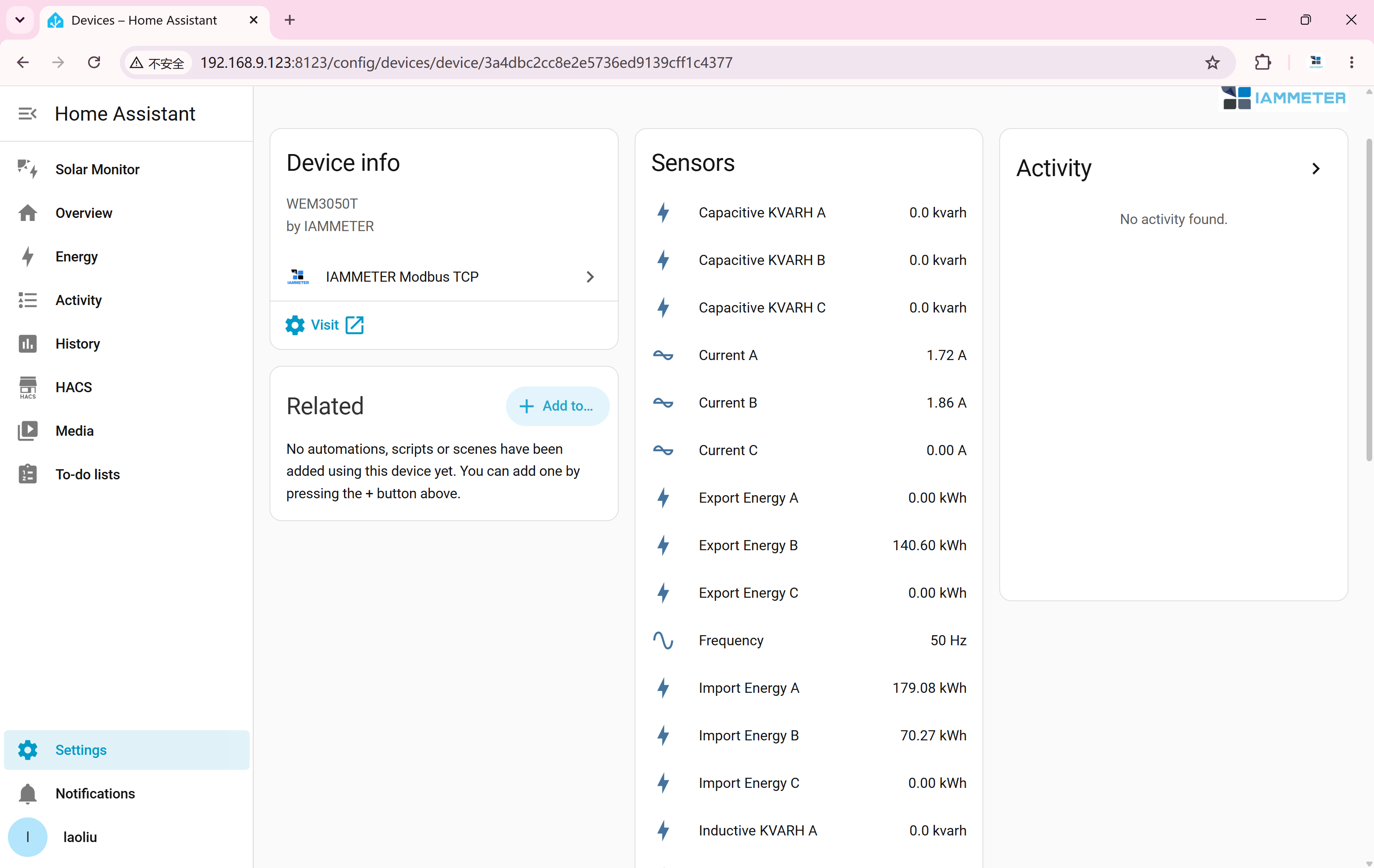
The public Modbus server is independent of the selected web model. It identifies as WEM3050T and provides the full three-phase register map: A is inverter, B is grid and C is disconnected with zero readings. Use Auto or WEM3050T where the integration asks for a model.
Home Assistant needs outbound access to raw TCP port 502. Once connected, check the measurement entities and confirm their readings update.
| Setting | Value |
|---|---|
| Host | simulator.iammeter.com |
| Port | 502 |
| Model | Auto / WEM3050T |
3.1. Test Reactive Measurements
Alongside voltage, current, active power and energy, compatible integration versions expose reactive power (var or kvar), inductive reactive energy (kvarh), and capacitive reactive energy (kvarh). A zero capacitive value is expected for the default inductive-load scenario.
Reactive data is also available through monitorjson and upload JSON when Reactive is enabled for that session. It is not returned by /api/monitor. Browser settings do not automatically carry over to HA’s separate requests; available entities depend on the endpoint, data source and integration version.
When moving to a physical meter, replace the Modbus host with its local IP address, check model/register scaling, and normally keep port 502. Public simulator scaling may differ from single-phase hardware.
4. How the Simulator Generates Data
The simulator follows a 24-hour home solar scenario with changing solar generation and household demand. Grid power is household demand minus generation: positive means import and negative means export. PF is non-negative.
Compare these curves with readings in HA and check when automations trigger. For example, as solar generation increases, does the grid change from import to export, and does the corresponding automation run?
Public HTTP polling without a browser session and shared Modbus/TCP use the default Inverter and grid source. A data-source selection made in your browser does not automatically change the source used by HA.
5. Other Tests
You can also test Home Assistant through MQTT: open the simulator’s Settings, configure a broker reachable from the simulator backend, and connect HA to the same broker. A LAN-only broker is not directly reachable from the public simulator server.
The WEM2067 topic is device/ZAT3LQD9/realtime. Uploads stop after 5 minutes without page activity by default; keep the simulator page active during this test.
The MQTT Discovery article below describes physical IAMMETER devices. The simulator currently publishes measurement JSON only; it does not publish Home Assistant MQTT Discovery configuration messages. Use manual MQTT sensor configuration for simulator tests.